> This is part 1 of 2 of the full documentation (pages 1–100 of 132).
> The content is paginated: fetch every part to see all of it.
> Next part: https://help.hummingbird.co/llms-full.txt/1
> Page index: https://help.hummingbird.co/llms.txt
# General
The articles in this section should provide help answer your high-level questions about Hummingbird.
# Adding additional data to a review (Custom Fields)
Hummingbird allows the inclusion of Custom Fields to provide additional context to a review, as well as provide sortable fields of arbitrary data. This data can be passed via API, csv imports, or manually.
The way other info works is that there is a Name, and a Value. For example:\
`Name` : Risk Score\
`Value` : 0.85
Names show up as columns on the Case Dashboard.
{% hint style="warning" %}
Note: Custom Fields are referred to as `other_info` in the API.
{% endhint %}
### Managing Custom Fields
There is a tile on the Canvas named Additional Information that shows the number of Custom Field entries by Review. The Internal Control Number is shown. If no ICN is present, the case token is displayed instead.
#### Viewing and editing Custom Fields
Just click the Additional Details Tile to see the values for all Reviews in the case. To make edits, just edit the value in the cell and click Save. To add other info, just click "Add field", enter your info, and click Save.
# What is Hummingbird?
Hummingbird is a platform for case management, investigation, and regulatory reporting in financial compliance. Hummingbird is used by companies in the financial industry to manage workflows and operations in several practice areas, including anti-money laundering (AML), customer diligence, transaction dispute management, compliance testing, and more.
{% embed url="" %}
We work with different Know Your Customer (KYC) data providers, watchlist data sources, and transaction monitoring services. Once you license those services, you’ll need a place to bring them all together – that's what Hummingbird is.
For example, when unusual financial transactions are detected by an algorithm, analysts use Hummingbird to investigate the transactions and report the behavior to law enforcement.
To learn more, check out our [platform features](https://hummingbird.co/platform-features) and [use cases](https://hummingbird.co/use-cases), or reach out to our team at to get started.
# How do I send feedback or get answers to my questions about Hummingbird?
Please email us at or send us a message by using the in-app bot (located bottom-right of the screen) on [our website](http://hummingbird.co). You can also access our Help Center directly from your sandbox or production environment by clicking on your name on the top right and choosing “Help Center” from the drop-down menu. If you have trouble viewing the articles, please log into the [sandbox environment](https://sandbox.hummingbird.co).
Our service-level agreement (SLA) for the service as a whole is covered in our contract with you (customer).
# How do I sign-in to Hummingbird for the first time?
During onboarding, Hummingbird’s customer success team will create a sandbox account for your organization and trigger a welcome email which prompts you to login.
1\. Click on "Complete My Account" from the welcome email sent to your email address

2\. Create your account by setting up a strong password, then click on Next

3\. Log in using your email and the strong password that you just set

*Note*: For security reasons, we lock your account after 5 failed login attempts for 10 minutes. After that, your account would automatically unlock and you can log in again.
You also have the option to sign-in to Hummingbird with your Google account. Simply click on “Sign In with Google” on the Hummingbird log-in page and follow the steps.

For security purposes, we highly recommend setting up two-factor authentication. To do so, click on your name in the top right, then choose Settings from the dropdown menu. Within the Account tab, you’ll see a field called Security. Click on the pencil icon and choose an authentication method (i.e., Email or Authenticator). Select your preferred method and follow the instructions to configure two-factor authentication.

# What are the Hummingbird APIs?
Hummingbird offers an Alerts API, a Case API, and a Filing API.
#### Alerts API
Hummingbird is designed to integrate with existing monitoring solutions. The [Alerts API](https://docs.hummingbird.co/#hummingbird-api-alert-management) allows you to send alerts from monitoring systems along with any data that might be relevant for working the alert. Hummingbird will group alerts into cases based on the associated subjects and attach all the relevant data into the case.
#### Case API
For cases not tied to alerts from monitoring systems (e.g. customer review, incident reports, complaints, etc.), or in the event you want finer grained control over case creation, Hummingbird provides a [Case API](https://docs.hummingbird.co/#hummingbird-api-case-management) for creating or updating cases. Additionally, for information retrieval or data syncing, Hummingbird provides APIs for listing cases and fetching case information over API.
Hummingbird also supports batch creating cases over the [case import API](https://docs.hummingbird.co/#hummingbird-api-case-importing). This is preferable for use cases where it's desirable to create many cases all at once, or when dealing with very large cases.
#### Filing API
The [SAR filing API](https://docs.hummingbird.co/#hummingbird-api-case-filing) is a great product for organizations that have some in-house compliance tooling and just need help managing the tricky parts of SAR filing integration. The filing API is built on top of the case API and allows you to validate cases against a given jurisdiction, file the case, and monitor the filing status.
Here is a link to all of Hummingbird’s API documentation: [https://docs.hummingbird.co/](https://docs.hummingbird.co) (Email for access)
# What is Hummingbird’s onboarding process?
The onboarding process is typically broken down into three phases:
1. **Setup and integration:** Hummingbird collaborates with your organization to map data formats and set up your initial workflows.
2. **Sandbox**: Hummingbird configures a sandbox account and allows your organization to test several cases. We also fine-tune the configuration as needed.
3. **Production:** Hummingbird configures a production account and supports your organization on case creations and SAR filings.
# What’s Hummingbird’s data retention policy?
Hummingbird retains the data that you send to us for at least 5 years for audit purposes. The data is hosted in Amazon Web Services (AWS) in the United States.
Please reach out to the Hummingbird team () if you have any questions.
# What’s Hummingbird’s security and data management policy?
Security is paramount at Hummingbird. We store Suspicious Activity Reporting (SAR) case data on a Virtual Private Cloud (VPC) hosted on Amazon Web Services. We are Service Organization Control (SOC) 2 Type II certified and have large financial institutions using the platform, having passed extensive due diligence audits for very large organizations. We also provide prospective customers with an extensive InfoSec package under a non-disclosure agreement (NDA).
The [security section](https://hummingbird.co/security/) of our website provides more detail on our security practices and procedures. If you’d like to review our policy documents and certification reports, please reach out to our team at .
# Which browser is Hummingbird compatible with?
Hummingbird currently supports the latest 2 versions of Chrome and the latest 2 versions of Microsoft Edge.
Please reach out to the Hummingbird team () with any questions.
# Which features should I highlight during an audit? What should I present to the regulators?
Here are some key features and where to find them within Hummingbird. These should be highlighted and presented to the regulators during an audit.
**Within a case**
*Automatic audit trail*: This feature ensures that you have comprehensive audits of all work that occurs in Hummingbird. You can find this information in two places - at the bottom of the Overview section within a case, and in the History tab within Settings.

*Comments and approvals*: Whenever you leave a comment or ask someone for an approval, this action is captured in the audit trail. You can find this section above the audit trail in the Overview section within a case.

*Download case information*: This feature allows you to export detailed case information with one-click. You can find it at the bottom of the Overview section within a case.

*Review type* (e.g., Triage, AML Investigation, EDD, etc.): You can show standardized procedures (actions/tasks) for each investigation workflow.

*Case monitoring*: Once you’ve made the decision to “set ongoing monitoring” for a case, Hummingbird creates a “pending” review of the case that will automatically open when it’s time to review the case again (typically 90 days). This is particularly helpful when filing a continuing SAR. [Learn more](https://help.hummingbird.co/case-management/can-i-set-ongoing-monitoring-reminders-for-certain-cases-where-can-i-find-these-cases) about case monitoring.

**Within Settings**
1. *Roles and permissions*: This feature allows internal access control over visibility for different roles. You can find it in the Team tab within Settings.

**From the main dashboard**
1. *Timeline*: This feature allows you to sort cases by due date. The most urgent cases are displayed in red. You can assign cases based on urgency level ([learn more](https://help.hummingbird.co/case-management/how-can-i-see-time-sensitive-high-priority-cases)).

**Within Analytics**
1. *Time-sensitive reviews*: You can see the number of time-sensitive cases across your organization within this page.

**Other**
1. *Data feeds*: Hummingbird works with many transaction monitoring systems (e.g., Alloy). The integration automatically populates alerts and cases within Hummingbird.
2. *FinCEN connectivity monitoring*: The Hummingbird system continuously tracks FinCEN’s uptime. Our connectivity to FinCEN is self-healing - if you file a SAR while FinCEN’s system is down, Hummingbird will automatically try to resubmit your filing. You will also have an audit trail within Hummingbird to show when you’ve submitted a case. [Learn more](https://help.hummingbird.co/reporting/how-does-hummingbird-manage-connectivity-to-fincen) about how Hummingbird manages its connectivity to FinCEN.
# Analytics
The articles in this section should provide help answer your questions about the Analytics available in Hummingbird.
# How can I export data from an Analytics table?
You can export data from a table you need by clicking on the Download icon in the upper right of each table. This initiates a CSV download.

# Where can I see a summary of all my cases over time?

There are several tables available for your review within the Analytics dashboard:
* Total Reviews By Date: This chart shows you the count of reviews created, closed, and open as of a given date.
* Review Types By Date Created: This chart allows you to visualize the number of reviews that are created each day by review type (e.g., Triage or AML Investigation).
* Decision: You can toggle between various charts which will allow you to visualize the number of decisions. For example:
* U.S. Filing (AML Investigation) - filed or dismissed
* Set On Ongoing Monitoring Decision - flag or not flagged
* Prepare U.S. SAR Filing Decision - marked as complete (yes/no)
* U.S. Filing (SAR Filing) - filed or dismissed
* Escalation Decision - escalated or dismissed
* SARs filed: This chart allows you to visualize the number of SARs filed per day over an adjustable time period.
* CTRs filed: This chart allows you to visualize the number of CTRs filed per day over an adjustable time period.
* Case Triggers and Outcomes: This download shows you the number of triggers associated with case outcome over an adjustable time period.
Note: *when you click to download this report, it will download two separate CSV files. Some browsers have blocked the second file and will show a warning indicating that the website is trying to download multiple files – be sure to allow Hummingbird to download multiple files.*
# Where can I see a summary of all the stats associated with my cases?
A high-level summary of your case analytics can be found at the top of the Analytics dashboard. These metrics include:
* Reviews created this week
* Reviews completed this week
* Currently open reviews
* A count of reviews due in the next five days (include all review types)

# Where can I see my team's workload and analyze the time it takes to complete reviews?
Use Productivity Analytics to understand your team's performance and improve your compliance operations.
### Productivity Analytics Overview
Use Hummingbird’s productivity analytics to unlock metrics that will help you improve team performance and strengthen your compliance program’s operations.
To access productivity analytics, navigate to your Analytics page in Hummingbird and click the "Productivity" tab. Here you'll find various charts that will show you upcoming casework and provide historical stats on reviews worked.
The productivity analytics dashboard helps you answer questions like:
* What's the current review workload distribution across my team?
* Do we have any overdue reviews, and what does workload look like coming up?
* How long does the team spend on different workflow steps of each review type, and where might there be bottlenecks?
### How to use Productivity Analytics Charts
Note: Changes within Hummingbird may take up to 15 minutes to reflect in the dashboard. The three dot menu in the upper right side of each chart will show the most recent timestamp at which the data was refreshed.
| Report Type | What it tells us | How to use it |
| ------------------------------------- | ---------------------------------------------------------------------------------------------------- | --------------------------------------------------------------------------------------------------------------------------------------------------------------------------------------------------------------------------------------------------------------------------------------------------------------------------------------------------------------------------------------- |
| Workload Review count by assignee | Tracks the number of reviews assigned to each team member | View each team member’s workload. |
| Review days until due | The number of days until a review is due for each team member | See which team members have reviews with approaching due dates so you can assign upcoming cases accordingly. Plus, be aware of reviews that are overdue in case team members are encountering challenges |
| Review completed per day per assignee | The number of reviews completed each day by team member | Understand your team member’s productivity in terms of reviews worked over time. |
| Review type timing | The average number of days it takes to make a decision on each workflow step of various review types |
Use this chart to potentially identify bottlenecks in specific workflow steps for different review types.
For example: If a review sits in a stage too long, there may be an opportunity for you to remove barriers or uncover friction points in the process.
|
| Review decisions | Who made a decision on a review, plus the stage |
Identify common decisions made for each stage of a review type, and any inconsistencies in decisions made by various team members for similar review types.
For example, John and Jane are two investigators. Jane chooses to escalate 70% of all triage reviews and John only escalates 30% of triage reviews, which may signal inconsistencies in their approaches.
|
| Reviews completed by decision | The number of reviews completed per review type by decision | Shows frequency of final decisions made on various review types. |
| Alerts | The number of case alerts triggered at various points in time | Get a historical lookback at alert volumes based on various points in time to help you identify trends and anticipate staffing needs. |
| Workload Management | Review counts by assignee and status | Get a current look at the workload distribution across the organization to help with assignment planning. Click on the numbers on the chart for a link to each review to change the assignee. |
#### Filtering
The dropdown filters may be applied for more granular reporting, such as filtering by time frame, review type, or assignee:
#### Downloading productivity analytics charts
Download chart data using the three dot menu in the upper right hand side of each chart. Each download will reflect the filters currently applied:
### Badge Assignment
In order to access this dashboard, you must have the badge `Productivity Analytics`. Contact your customer support manager if you need assistance with badge assignment.
# Case Management
The articles in this section should provide help answer your high-level questions about the Case Management available in Hummingbird.
# How can I add tags to cases?
Hummingbird provides the ability to tag cases for quick identification
## Setup
To use case tags, you must first create some within your organization's settings area. To do this, follow the instructions [here.](https://help.hummingbird.co/features/tag-management)
## Usage
### On the Canvas
Tags can be added to cases by clicking the button within the case header. The tags defined within the organization's settings are available for selection or deselection.
### On the Dashboard
* Enable the Case Tags column to view tags\

* Type a tag name in the search bar to see all reviews in cases carrying that tag
* Use in filters to return reviews in cases carrying that tag
### Using the API
Case tags can be added, removed, and retrieved beginning with the `v2024-09-04` version of the API. Usage documentation is [here.](https://docs.hummingbird.co/reference/cases_tag_get)
# Can I delete cases that were created by accident?
For a variety of regulatory reasons, we don't offer a delete option. Our stance is that it's better to have an audit trail. That being said, you do have the option to *Cancel* a review. These reviews do not show up in analytics.
Alternatively, we recommend leaving a comment on the case ("created by accident, duplicates case XYZ") and completing the case so it’s archived:
* To leave a comment at the case level, click on the "Comments" tab on the right-hand nav.
* To archive a case that’s created by accident, go to the Decision stage and make a selection. For example, an AML Investigation review type may include "U.S. Filing" action and a "Set Ongoing Monitoring" action each with its own Decision stage.

# Can I make changes to a case that’s already been submitted for approval?
If you need to make changes to a case that’s been submitted for approval, you could @-mention your selected reviewers in the Comments section and let them know. Once you request a review, they’ll receive a notification in-app and by email.

# Can I set ongoing monitoring/reminders for certain cases? Where can I find these cases?
Hummingbird enables you to create a reminder to check back on a case after a period of time. These reminders are commonly used in financial compliance for monitoring certain cases every 90 days. When you want to monitor a case in this manner, Hummingbird creates a “pending” review of the case that will open when it’s time to review the case again.
When you filter the "Status" column on the Dashboard, you can select the Pending state, which will only list cases that are in a pending state and will open after the specified amount of time (usually 90 days). These reviews can’t be completed until they open, but you can see what you have queued for the future. This view can be useful for planning your future workload and for showing your monitoring cases to an auditor.

Hummingbird can configure preset follow-up timelines for you. We do not currently allow the analysts to set custom timelines - this is a design choice in support of ensuring that your reviews are conducted on policy-driven timelines. Reach out to the Hummingbird team () to learn more.
# How can I add an approver in within a review?
You must be the assignee of the case in order to add an approver, and the workflow must be configured to allow for peer approvals. Assuming that this is setup, you can add an approver when you make a decision:

{% hint style="info" %}
Note: To assign a case, click on the user icon in the top right of the review and choose a teammate to assign the case to.
{% endhint %}
# How can I assign a review to a team member?
Select a case from your dashboard, then click on the user icon in the top right of the review and choose a teammate to assign the case to. Your teammate will be notified that they’ve been assigned a case (in-app and/or email).

# How can I change the assignee name on a completed review?
You can reopen the review by clicking on the green checkmark at the top of the review. Once re-opened, you can add the assignee and re-complete the review. The review activity history should still show the original completion, but the timestamp in the upper-right corner will always show the most recent time the case review was completed.
{% hint style="info" %}
You’ll need to have the right permissions in order to reopen a case. Please reach out to the Hummingbird team at to learn more.
{% endhint %}

# How can I configure workflows in Hummingbird?
We can easily configure your Hummingbird account with workflows that mirror your policies. We built Hummingbird to easily integrate into your existing workflow, and your workflow configurations can be customized to meet your specific needs.
Some of the compliance practice areas we have configured workflows for include:
* Transaction monitoring alert triage
* Escalated AML investigations
* Transaction disputes
* Consumer lending complaints
* Unusual Activity Report referrals to banking partners
* Customer diligence (CDD/EDD)
* Fraud investigations
* High risk customer monitoring
* Legal requests
We can easily modify the required steps and inputs for each section so you can be more efficient and productive than ever before. Reach out to the Hummingbird team () to get started.
# How can I confirm that a file has successfully been imported in Hummingbird?
You can check to see if a file has been processed by navigating to Settings->Reports->Imports. You will see a status for each file import via:
* Uploading a spreadsheet (CSV, Excel, or other tabular data format); or
* API.
Additionally, if the import caused a case to be created, a link to that case will be provided.
You will also receive email notifications about the status of your import. Learn more about how to manage your email notifications settings ([help article](https://help.hummingbird.co/collaboration/where-can-i-manage-my-email-notifications)).

# How can I create a new case?
There are three ways cases can be created in Hummingbird:
* **Manually, one-by-one:** By clicking on the + icon in the top right corner and then clicking on New Case
* **Manually, in bulk**: By clicking on the + icon in the top right corner and then clicking on Bulk Import
* **Via API:** If a case is added via API it’s also automatically created in Hummingbird

# How can I create triggers for a case?
There are three ways for triggers/alerts to be tied to a case:
1. Through integration with our API;
2. By manually creating a case by clicking on the + icon on the right and filling out the Triggers section; or

3\. By importing data and including *trigger\_rule* and *trigger\_date* as columns.
Once populated, you’ll see the triggers listed in the Overview section of the case.
{% hint style="info" %}
Instead of the default text field for adding triggers, the Hummingbird team can help you configure a list of triggers in a drop-down menu. Additionally, we can enable the ability for certain users to edit triggers. Please reach out to us () to learn more.
{% endhint %}
# How can I filter my cases by review type?
When you click on the "Type" filter from the Dashboard, you can select only those types that interest you.

# How can I reorder existing columns or add columns on my dashboard?
If you’d like to change the order of your columns, simply click on the name of the column and drag it to your preferred location.

To change the columns that appear in your list, click on the "Columns" button in the upper-right corner and select columns to add them or deselect columns to remove them. *Note*: The "Triggered At" column shows the earliest date of a trigger associated with a review.

# How can I see time-sensitive (high priority) cases?
In the main dashboard, the default view for cases is sorted by the due date (most urgent to least urgent) in the Timeline column. Either an up or down arrow (but not both) would indicate the current column that the cases are sorted by. The most urgent cases are displayed in red.

To manually set a due date, select a case from the main dashboard then click on the Clock icon at the top-right corner of the review. The due date will be reflected in the Timeline column in your dashboard. The Hummingbird team can also help you automatically assign due dates based on review type. Reach out to us () to learn more.

Additionally, the Time-Sensitive Review metric in the Analytics tab shows the total number of uncompleted reviews (including all review types) where the due date is less than five days away.

# How can I verify that the cyber event indicators have been imported correctly?
Once cyber even indicators have been imported, you can verify them by going to the Cyber Event Indicators task within a case.

You can also download the FinCEN SAR XML Format document from the "Files" tab and verify that the cyber event indicators have been included.

{% hint style="info" %}
To enable the ability to add cyber even indicators, please reach out to [the Hummingbird team](mailto:support@hummingbird.co).
{% endhint %}
# How can I view details of a case or work on a case?
Clicking on a case from the dashboard gives you detailed information about that case and allows you to work on it.

# How can I view and manage Subject data?
Managing Subjects, Accounts, and Devices
## In the Investigation Canvas
### How do I find Subjects within the Investigation Canvas?
Simple! Just open the case, scroll down, and you will see all Subjects at the bottom of the page.
### How do I get at-a-glance information about a profile?
Click the icon for the property you want to view.
### How do I get full details about a Subject?
Click the icon in the Subject's row, and you will get full detail.
## Within Reviews
### How to I find where Subjects are listed within the review?
1. **Navigate to the Subjects task** within the review and click it.\

2. **You will now see a list of Subjects**, broken into three categories:
1. **Financial Institutions**: These are all the Financial Institutions contained within the case data.
2. **Subjects:** These are Businesses or Individuals within the case data.
3. **Other accounts and devices**: These are devices, bank accounts, payment cards, or wallets within the case data and do not have an identified owner.

### How do I find a Subject within the review?
There are two ways to find a Subject:
1. **Use the search.** If you know who you're looking for, just type a letter or a full name:\
\

2. **Browse.** Just expand the Subject category you are interested in. Paginate as needed.\
\

### How do I access Subject data from within a review?
A few levels of customer data are available directly from within the review.
1. **You can view full Profile information.** Click on the Subject's name to see the profile in the Investigation Canvas.
2. **You can view accounts, devices, accounts, and wallets from the review panel.** Click on the icon and see high-level information.\
\

3. **You can access deeper information about accounts and devices.** The account overview row is clickable.
### How do I exclude Subjects from the filing?
There are multiple ways to manage.
1. **Bulk select and deselect.** Click Select or Deselect all.\
\

2. **Select and deselect individually.** Click the checkbox next to the Subject or Account to select or deselect.\
\

# How can I see all Profiles associated with my cases?
Let's look at the Profile Dashboard
The Profile Dashboard is the home for all People, Businesses, Financial Institutions, and Products received by Hummingbird for your Organization.
The Profile Dashboard
## How do I filter the results?
This view has much in common with the Case Dashboard, in that you're able to apply multiple levels of filters and sort columns. To learn how to filter most Hummingbird tables, please refer to the [Enhanced Dashboard Filters](https://help.hummingbird.co/features/enhanced-dashboard-filtering) help article.
**NOTE:** We don't currently support sorting or filtering on case counts. This functionality will be shipped at a later date.
## **How do I view Profile details?**
Just click on a row to drill down on the Profile, Accounts & Devices, and related Cases.
Drilling into Profile detail
## What does each column represent?
* **Profile:** The name of the Person, Business, Financial Institution, or Product.
* **Type:** Profile type - Person, Business, Financial Institution, or Product.
* **Device:** Count of mobile devices or computers.
* **Accounts:** Count of Crypto Addresses, Bank Accounts, or Cards.
* **Cases:** Count of Cases containing the Profile.
* **Alerts:** Count of Alerts containing the Profile.
* **Updated:** The last date & time data changed withing the Profile.
* **Created:** The date the Profile record was first received by Hummingbird.
* **Tags:** Display of any Tags associated with the Profile.
# How do I complete a review (from start to finish)?
After creating a case (manually or via Hummingbird's API), click on the case from the dashboard to work on it. You’ll find information about the status, what triggered the review, and the current status of each of the actions you need to take to complete the review. A review is considered complete when all the actions and tasks for that review are complete.

**Example – AML Investigation review type**
Once you’re in a case, you’ll see a list of the reviews done for that case. For each review, you’ll see an Overview section, a Research section and a list of Actions in the left panel.
Within the Overview section, you can view high-level information including case status, case stage, filing status, trigger, subjects, date range, and net activity, etc. There’s also a comments & approvals section for collaborating with your team. You can view a list of review activity (audit log) and available case documents that you can download at the bottom.
Within the Research section, you can view a checklist of different research sources. You also have the ability to import one or multiple attachments at once. *Note*: The checklist can be customized to suit your needs.
Within the Actions section, you can click on each option to expand the individual tasks:
1. Write a narrative to describe the activity that occurred.
2. Add transaction information
3. Add subject information
4. (Optional) Select what type of products & financial instruments were involved
5. (Optional) Add cyber event indicators
6. Make a decision to file/don’t file
*Note*: You will see a confirmation screen at the Decision stage within a review. For example, when you make a decision to escalate a review or file a SAR, a new screen will appear and ask you to confirm that you want to take that action.
\[Required if the decision is to file a SAR]
1. Search and select what type of suspicious activity took place
2. Fill out the filing details (e.g., filing type, file ID, etc.)
\[Optional]
1. Set ongoing monitoring
{% hint style="info" %}
Once you finish all the tasks (including “Set ongoing monitoring” if your review type includes this action), your review will automatically be completed. You will see the green checkmark at the top of the review. You can also manually “complete” a case by clicking on the ellipsis next to the review, and selecting "Complete" from the menu.
{% endhint %}

# How do I manually import data into Hummingbird?
We recommend importing as much data as possible through our API to prevent human error translating information between systems. This approach also helps to reduce the amount of time it takes to investigate and complete a case.
That said, we understand it’s not always feasible to import all of your data via our API, so we offer three ways to manually import data in the Hummingbird platform.
**1. Bulk import multiple cases at once (requires configuration).**
Hummingbird can enable you to import multiple cases from a spreadsheet at once. The spreadsheet can be a tabular format of case data that includes information like alerts, subjects, accounts, and transactions.
To use the Hummingbird bulk import feature, you must work with the Hummingbird team to configure the template of data that will be used to import data. Please contact us at to start this process.

**2. Import the investigation data within a case.**
Within a case, Hummingbird can configure a custom format for you that will import multiple types of case entity data together in one step. For example, Hummingbird can import a spreadsheet that contains information about the case subjects (people or businesses), the accounts used, and the transactions associated with a case in one import.
To import a case data format, [the Hummingbird team](mailto:support@hummingbird.co) will work with you to configure the desired data format in your sandbox or production environment.
Once configured, to import information from a spreadsheet:
1. Select a case from the main dashboard
2. Click on the “Add to Case” button
3. Select "Custom Import" from the drop-down menu

4\. Import a spreadsheet, drag-and-drop a spreadsheet (into the “....or import a file” area in the pop-up screen) or copy-paste the data from a spreadsheet
5\. Click on “Import”
6\. Verify the data being imported (see screenshot below)
7\. Click on “Complete”

**3. Manually create the data**
You are always free to manually add the data necessary for the investigation. To get started, from within a case, you would click on the “Add to Case” button to see the variety of objects you can add:

This would bring up a form where you can add the data about the case data:

{% hint style="info" %}
**Note:** you can add Bank Accounts, Payment Cards, Devices, and Crypto addresses to a case from within the Person of Business data.
{% endhint %}
In order to manually add one of these data objects, you would first need to:
1. Open the entity in question, and click on "Accounts & Devices".
2. Click on "+ Add new".
3. Select the data you'd like to add, and fill out the form.

# How does the timestamp work in Hummingbird?
You can specify a timezone for all reporting and timestamps within Settings: click on your name on the top right, choose Settings from the drop-down then click on the Organization tab. There's an "Organization Timezone" under the Profile Information section at the top.

{% hint style="info" %}
If the data you sent us does not have a timestamp, it’s shown in UTC time (approximately London time), which may look a day earlier in the transactions table. The Insights table also appends a time to the record – it shows you precisely where the datetime is being represented on the chart, which is midnight UTC time.
{% endhint %}
# How can I download case files?
You have two options for downloading case files:
#### Download a single file:
Just navigate to the files tab at the top-left of the Investigation Canvas, and hover over the file you want to download to expose a download arrow. Just click the arrow and it will download.
#### Download all files:
Again, navigate to the files tab at the top left of the Investigation Canvas, and click the download all button. These will be gathered, organized into folders within a zip file, and downloaded.
# Is there a size limit for uploaded files?
We recommend keeping individual files **under 100 MB** for the best performance. This makes uploads faster and ensures files are easy to access later. There’s also no overall cap on the number of files you can upload, but adding **more than about** **100 files** to a single case or CRM profile can make the list harder to manage.
These guidelines apply to all file uploads in Hummingbird—whether added through the web app or the API.
# How should I manage case names in Hummingbird?
Case names are internal to you and your Hummingbird account and will never be shared outside of the platform. The filing name for a SAR is customizable in the Filing Details section (under the U.S. Filings action) and will be sent to FinCEN when the filing decision is made.
You can change the Hummingbird case name by hovering and clicking into the case name field.

You can change the filing name in the Filing Details section within a review.

# Collaboration
The articles in this section should provide help answer your high-level questions about the collaboration features available in Hummingbird.
# Are comments included in SAR filings or other reports?
Comments are generally **not** included in SAR filings or other formats that you export from Hummingbird.
If you would like to download comments from a case, you're able to do so by navigating to Settings -> Reports -> History, and clicking the "Export" button. This will download case data for the time frame selected, including case comments.
# How can I alert a team member to a case?
After selecting a case, scroll down in the Overview section and you’ll find the Comments & Approvals section. If you @-mention a team member to ask them to take an action (e.g., approve or review), this will trigger in-app and email notifications for them.

# How can I manage a joint SAR?
In order to indicate that a SAR is a joint filing, you simply need to check the box indicating that this is a joint report, as seen here:
You should discuss the financial institution you are filing this joint report with in the narrative of your SAR.
For more details, see [Filing Joint Reports](https://beta.docs.hummingbird.co/using-hummingbird/filing-sars/filing-with-fincen/filing-joint-reports) in Hummingbird.
# Where can I find my in-app notifications?
Notifications help you keep track of actions taken on your cases. They include status changes, assignments, or comments that other team members have made on your cases.
Click on the bell icon at the bottom left next to your name to view your notifications.

# Where can I leave comments for team members in Hummingbird?
One of the ways you can collaborate with team members in Hummingbird is through comments. By leaving comments you can capture notes about your investigations, bring something to a team member’s attention, or document steps you may have taken as part of a specific workflow. After selecting a case:
To leave a comment, click on the Comments icon on the right-hand navigation bar of the case.

# How can I add formatting to my Narratives?
Add some style to your Narratives.
Rich text adds a way to more easily find specific information within a narrative, thereby enhancing collaboration between team members. It is now possible to bold**,** underline, italicise, and create both bulleted and numbered lists.
We then strip out all of the formatting before submitting to the FIU to conform to specifications for the Suspicious Activity Report.
### How is it used?
First, your organization must be configured to use the functionality. Once you are configured, there are three ways to apply formatting:
1. **Use the formatting bar**\
At the top of the narrative area, there will be a format bar. By selecting one of the formats, all text entered afterwards will have formatting applied. Click the formatting button again to turn off.\

2. **Highlight a word**\
By highlighting a word, a format panel will pop up adjacently. Select your formatting and it will be applied.\
.png?alt=media\&token=dc14ce28-77d9-42bb-98f2-50ec69863028)
3. **Use key commands**\
Familiar key commands, such as `cmd+b` for bold will work.
We also have a toggle below the narrative field to turn off formatting and view as plain text.
# Where can I manage my email notifications?
You can manage your notification preferences by going to Settings (get there by clicking on your name in the lower left then choose Settings from the dropdown). Within the Accounts tab, scroll down to the Email Notifications section. You can toggle to enable/disable notifications for each of the notification types listed (e.g., someone assigns a case to you, filing is successfully filed, no response to SAR filing after 72 hours, etc.)

# Data Integrations
The articles in this section should provide help answer your high-level questions about data integrations in Hummingbird.
# How should I integrate transaction monitoring alerts? What’s the recommended data flow?
To facilitate an AML investigation that arises from a transaction alert, we recommend using the following data flow when integrating with Hummingbird:
1. Start from the transaction(s) that triggered an alert.
2. Pull the customer profile, linked account records, and other account details for the customer that made the transaction.
3. Query for all of the customer's transactions over a recent period of time (generally the last 3-12 months of activity, but this time window is at your compliance team’s discretion).
4. Call the Hummingbird Alerts API with this information to create an alert and send the initial case information you assembled in the previous steps.
The Hummingbird Alerts API will automatically combine multiple alerts from the same customer into a single case – this is very handy for your compliance team!
# Reporting Credit Card Numbers on SAR Forms
Our policy is to only report credit card numbers to FinCEN when we have the full, unmasked number. That field will be left blank when we file a SAR on your behalf if we receive a masked card number or no card number.
If you would like to send FinCEN *some* credit card detail we suggest that you provide the masked PAN in the narrative so that a request for follow-up information can be met quickly.
Please reach out with any questions to
# What are the minimum data requirements for importing transactions?
For all transaction imports, an amount and a date value must be provided at minimum. You can import more data as needed. Please reach out to the Hummingbird team () for sample templates.
# Why did Hummingbird reject my file import? Why did my file fail to import?
Hummingbird offers a few ways to import your data:
* Through direct import in the Hummingbird platform
* Through our APIs
You may run into errors while importing data into Hummingbird. Hummingbird is usually able to show specific validation errors so you’ll know what changes to make easily. If you have any questions, please reach out to the Hummingbird team at .
An example of import error in Hummingbird:

# When importing data to existing cases, how are locked cases handled?
In the event that you attempt to import data to an existing case or cases via file upload, we will attempt to import that data to the cases. If the case is locked, by default the import will stop running and notify you of the error.
If you would like the option to automatically unlock cases as part of this data import mechanism, in order to prevent any data processing errors, you can select the "Unlock Cases?" option.
Note that you will need a badge with the "Unlock Case Information" permission in order to use this feature:
# Features
The articles in this section should provide help answer your high-level questions about some of the features available in Hummingbird.
# Batch Filings w/ FinCEN
Send filings to FinCEN in batches.
### What is it?
Batching Filing enables a filing organization to send filings to FinCEN in batches instead of one filing at a time. Filings are not sent when created; instead, they are grouped and sent together. This functionality also includes optional attachments.
We built Batch Filings on our existing Filing functionality, which means your experience will remain largely the same.
# Case File Attachments
You can add one or more attachments (bulk import) in the Files tab from within a case. You can add attachments by clicking the “Upload a File” button, or by dragging and dropping your file onto the page. *Tip*: You can copy a screenshot to clipboard (on Apple computers, the hotkey is Command-Ctrl-Shift-4), then paste it directly into the Information page as an attachment.
On this case Files tab, most file types are supported (except for .EXE files for security reasons). You can also compress your file(s) into a .ZIP file type first. If you're unsure whether your file type is supported, please reach out to .
Additionally, you can view attachments and PDFs directly within Hummingbird without leaving the app -- simply click on the file and you will be able to view and scroll through all the pages. You also have the option to download the file by clicking on the download icon at the top-right corner of the preview screen. NOTE: FinCEN SAR PDFs require Adobe Acrobat to be viewed - as such these are not previewable within your browser.
### File controls
Preview, download, rename, and delete controls are accessible by hovering over the file row on large screens:
Large screen
Or by clicking the three dots on narrower screens:
Narrow screen
### Downloading files
{% hint style="info" %}
Downloading files can take some time in some circumstances. For instance: downloading many files Hummingbird needs to generate on request (like Review summaries). Fear not - Hummingbird sends an email when the download is prepared and ready.
{% endhint %}
To download files:
* Click the download control on the file to download a single file
* Click the download all button to retrieve all files
* Select the files you want to download
# Case Pinning
### What is Case Pinning?
Hummingbird’s pinning functionality enables Analysts to further customize how they consume investigation details and complete review tasks by allowing them to choose what information is “pinned” in the right panel.
#### What is the benefit of Case Pinning?
Previously, the investigation canvas could only show Reviews in the right panel. However, analysts may want to see subject data side-by-side, view a review full screen, or even view two reviews side-by-side.
This creates efficienty when:
* Referencing UARs
* Triage
* RFI details while completing AML workflows
* Viewing case level investigation details while completing a narrative
Case Pinning allows an analyst to look at what they need, how they need.
### How to use Case Pinning?
When launching from the Review Dashboard, the selected review will automatically be **pinned** to the right panel.

Any case data (review, transactions, subject, etc) will automatically open in a new tab on the left.
* Pinning the tab moves it to the right panel, replacing what is there
* Unpinning the right panel provides moves it to the left as a tab, showing you a full width view
* Removing a pin provides a full page view of any tab within your investigative canvas

### Have questions?
Use the chat to speak with our Support team or email
# Enhanced Dashboard Filtering
### What is enhanced dashboard filtering?
Hummingbird is focused on adding additional customization and flexibility to the platform so you can specify and view details that are relevant and important to you. This is just the start, more enhancements coming soon!

### Frequently Asked Questions
#### What is the difference between a Filter and Filter Group?
A Filter allows you to define which data point(s) you’d like displayed on your dashboard by specifying either a singular or multiple fields with exclusive (and) or inclusive (or) logic . A Filter Group allows you to apply more granular and specific logic by combining multiple filters into one group, which can then be applied to additional filters.
#### How do I know how the dashboard data has been customized?
We display which filters are being applied on the top left hand side of your dashboard, and expose the sorting order in the column header.

#### Is there a max number of filters or sorting you can apply?
No! You can apply as many filters and sort as many columns as needed/desired.
#### How do I filter by CSV?
Alert ID and Internal Control Number are filterable by comma-separated values. Just comma separate the identifiers you are looking for in a string and paste into the text input field. We currently support up to 100 items to filter on.
#### Is the dashboard layout sharable?
Sending your dashboard URL to another Hummingbird user will present them with your customized layout. Badge permissions will impact what data is displayed and would result in different review details being presented.
#### Can you save a dashboard layout?
Yes! You have two options:
1. Saving your customized dashboard layout as a bookmark will allow you to easily access and share the filtered/sorted dashboard.
2. Save it on the platform.
#### How do I save filter views to my Hummingbird user account?
Save filter button
Once a filter is set that you want to save, click the Save filter view button. You will then be given an opportunity to name the filter. You can then retrieve the filter on your next session in the view selector.
View selector
#### How do I rename or delete my saved filters?
Easy! When viewing a saved filter, rename or delete functionality is available in the upper-left.
#### What about modifying my saved filters?
To modify a saved filter, just load the filter, make a change and apply that change. You will then see the context change at the top of your dashboard.
* **Rename filter view:** Saves the changes to the saved filter and renames it at the same time.
* **Delete filter view:** Deletes the saved filter
* **Update filter view:** Updated the existing saved filter with the new settings
* **Save as new:** Saves the update filter under a new name
#### Why are my dashboard settings removed after clicking into a detail view?
When working with ad-hoc filters (not viewing a saved filter) dashboard settings will be wiped once you click into a case and click on the Hummingbird icon to navigate back to the dashboard or table.
#### How do I retain filters when I view detail and then return to the dashboard?
Simple! Saved filters persist between viewing details and viewing the dashboard. Just load a saved filter set and it will be applied throughout your session. You know your view is being filtered by observing the context in the upper-left of the dashboard.

#### How do I export the data from my dashboard?
To export your data, simply click on the "⋮" icon and select the "Export to CSV" button. This will enable you to download a CSV file containing all the reviews that match your current filters.
### Have questions?
Use the chat to speak with our Support team or email
# CRM Entity Merging
{% hint style="info" %}
To use merging, users must be assigned a badge containing the `Merge CRM Subjects` permission.
{% endhint %}
## Background
It is possible for duplicate records to be created and used within Hummingbird, duplicate records diminish the utility of CRM in compliance work.
Duplicate records can be created in a a few ways, for example:
1. An entity is manually created when one already exists
2. Multiple systems are generating alerts with differing identifiers for the same entity
We seek to alleviate these concerns by allowing entities to be merged into one record within Hummingbird. Partial data from each record will be merged, and all case associations will then be updated to reflect this new entity.
Additionally, future updates that contain any of the constituent IDs for this merged entity will flow into the merged record. Because of this, Hummingbird can be the central record of truth that ties disparate systems together.
*Let's look at a scenario:*
In the above example we have duplicate entities with differing data. For each merge, the green entity is chosen to be the primary. What happens is:
1. We introduce the concept of primary & secondary values. When two values are in contention for a singular field (like date of birth), the primary record takes precedence is set as the primary value and will be used for filing. Other values are relegated to a secondary status and are retained for future reference.
2. Fields present in either profile that are not in the other get carried into the new entity as Primary.
3. Any future alerts or updates that come in for any of the entities above will find their way to the newly merged record. If the future alert references the primary ID, its data will be considered primary. Otherwise, it will be retained as secondary if unique.
## In use
Entity merging can be initiated directly from within a case. Just:
1. Scroll down to the "Collected Information" section, and select the two entities you would like to merge and click the blue merge button\
2. Because merging cannot be undone, there are a few confirmation steps to ensure this is the intended action. First up is a confirmation modal. Click the blue "Continue" button.
3. You will now see a review panel showing salient information for both profiles. Note that there is a mix of values for which a person can have more than one (like birthdate), and for which a person can have only one. Choose the entity with the most correct information that you want to serve as the Primary entity. \
\
You will need to select the profile that is the most accurate before continuing. The record you choose will serve as the "Profile of record" moving forward. Click the blue "Continue" button.
4. And one final confirmation. Click "Confirm and Save"
5. There is now one person!\
\
It should be noted that if both of the profiles you merged are in another case, the new profile could appear in that case twice and one must be removed. This is because the merged profiles could each have a different role in the case and it is best to manually resolve.
6. You'll now see within the profile that all information is retained, and for info like name or Tax ID or birthdate, one is marked primary and will be used for filing.\

# Expectations
Merging profiles have far-reaching implications
{% hint style="info" %}
Primary Profile - this is the one used for filing. Constituent Profiles are any pre-merge profile that compose the newly merged record.
{% endhint %}
#### Open Cases
* Open cases including any member of a merge will update to include the new entity
#### Case associations
* If PersonA and PersonB are both in a case, and then merged and PersonB is merged into PersonA, PersonA will appear in the case twice.
* All other information, including 2nd level entity information will be merged (in all cases).
#### Past Cases
* Past cases containing any Constituent Subject will reflect the Primary Subject, **unless they are locked...**
#### Locked Cases
* No information in locked cases should ever change while in a locked state.
* The standard disclosure modal will be shown upon unlocking a case, at which time any subjects that were subsequently merged will be updated.
* When unlocking a case in the event Subject B was merged into Subject A:
* Subject A will be updated to the merged entity
* If both Subject A and Subject B were in the case at time of lock, they would each be replaced by the new Subject A and would inherit Subject A and Subject B’s relationship to the case.
* Expectation is that the user will remove the redundant Subject A if necessary.
#### Future Cases
* Future cases that involve any Constituent Member of a merge will surface the merged Subject instead
#### Related Cases
* The universe of related cases will expand to include all constituent members
#### Transactions
* Any current and future transaction that relates to any member of a merged subject should be updated to reflect the new subject, locked cases excluded
#### Connections Graph
* The connections graph should now show all connections from the Primary and Secondary Subjects
#### Snooze Rules
* Snooze rules will not be carried forward for any Constituent Subject
#### Secondary Entity Relationships (bank accounts, crypto wallets, etc)
* Tags and institution relationships for the Secondary Entities will be de-duplicated and carried to the Primary Subject.
#### Case Data Exclusions
* Cases will inherit the exclusion status from the Primary Profile
# API Interaction
You have uncluttered your CRM by merging duplicates - congrats! Now, what happens with future API events?
Unlike most CRMs where Secondary Profiles cease to exist and return errors when API updates are attempted, a Compliance CRM cannot just ignore new data that could impact compliance activities.
The Hummingbird CRM will continue to accept new data not only for the Primary Profile in a merge, but for all Constituent Members of that profile.
## How does this work?
Let's consider a scenario where two alerts are received (Alert 1 and Alert 2), with IDs of `PersonA` and `PersonB`, and two Person profiles are created. On closer inspection, these records are determined to be the same person and are merged into one profile, where the record containing the ID of PersonA is set as the Primary profile, resulting in Person AB.
Merging in action
After this merge, very important information is sent in Alert 3 (referencing ID `PersonA`) and Alert 4 (referencing ID `PersonB`). Most CRMs would return an error for the new information referencing `PersonB`. However, the Hummingbird API will intelligently route the alert for `PersonB` to the merged Profile, incorporating new data with a Primary designation if the field is currently empty, incorporate new data with a Secondary designation if there is currently a value in that field, and ignore duplicate data.
# Upcoming work
* Allow merging for multiple Profiles at once
# CRM Profile Attachments
Include file attachments on CRM objects
Hummingbird allows you to associate files with CRM objects. So, driver's licenses are available wherever that person is being viewed, or bank statement can be available wherever where a bank account is being viewed.
Additionally, admin-configured tags can be used to identify the types of documents associated.
## Attaching a file to a CRM object
It's pretty simple.
Navigate to an entity from within the Case or directly from the Profiles dashboard and click on "Files" in the sidebar.
Files navigation
You're now viewing a list of files associated with the CRM object. To add a new one, just drag and drop to add it directly, or click "Add new" to navigate from your file system.
Uploading a file
The file is now available in every case this CRM object is included in.
## Managing files
### File controls
File controls are accessed via a kebab menu in narrow screen mode, or as an icon in wider perspectives.
### Renaming
So many files will be named `screenshot 2024-06-07.png` or something along those lines. Click the pencil icon or choose "rename" from the kebab menu. Give the file a new name and confirm your intention.
File renaming
### Opening a preview within Hummingbird
You may not want to download these files to your file system in order to see the content. If the file is a previewable type (which are most), you will see an eye icon in the file control menu. Just click that and your file will open within a new tab.
You can now just close the tab, or download the file if you wish.
File preview
### Downloading a file
Click download from the file control menu or document preview.
### Tag a file
You may have common files that are attached to CRM entities, like bank statements or articles of incorporation or driver's licenses. Your administrator can configure tags that are available for use in categorizing files. To do so, just click the `+` icon or `Add tags` from the kabab menu. From here, just choose a tag.
Adding a tag
# CRM Relationships (including beneficial owners)
Hummingbird allows you to relate Profiles to other Profiles
Background
The power of CRM is the ability to associate objects with each other. Within Hummingbird, CRM objects are defined as Tier 1 and Tier 2:
**Tier 1:** People, Businesses, and Financial Institutions **Tier 2:** Bank Account, Payment Card, Devices, and Crypto Address
Hummingbird supports relationships between First and Second Tier objects, for instance; Bank Accounts and Businesses, Bank Accounts and Signatories, Devices and People.
Hummingbird also supports relationships between Tier 1 profiles - People and Businesses can be related to a business as Beneficial Owners of that business. We also support customer defined relationships.
## Setting it up
To enable your organization to use CRM Relationships, we have created two badge permissions which can be assigned to badges of your choosing.
**Create custom relationship types**
Users with this badge permission can create new custom relationship types.
**Modify custom relationship types**
Users with this badge permission can edit and delete custom relationship types.
## In use
#### Beneficial Ownership
To establish beneficial ownership of a business:
1. Navigate to the business profile
2. Click "Relationships" in the sidebar
3. Click "Related Profiles"
4. Click the "Add new" button in the Beneficial Ownerships section
5. Search for a business or a person, assign an ownership percentage & click "Confirm"
#### Using Custom Relationships
1. Navigate to a profile
2. Click "Relationships" in the sidebar
3. Click "Related Profiles"
4. Scroll to "Custom Relationships"
5. Choose the custom relationship type
6. Search for the profile you are relating
7. Click "Confirm"
### Managing Custom Relationships
Ensure you have the `Modify custom relationship types` badge permission.
**Adding a new relationship**
1. Navigate to Settings -> Organization Settings -> Relationships
2. Click "Add new"
3. Give your relationship a name
4. Click Confirm
That's it! The relationship is ready for your Organization to use.
**Editing custom relationships**
{% hint style="info" %}
Hummingbird shows a count of instances the relationship is used in the "Current usage" column to help you know how widespread your change will be.
{% endhint %}
1. Navigate to Settings -> Organization Settings -> Relationships
2. Click the ellipsis icon to the right of the relationship you want to modify
3. Choose Delete if you want to Delete the relationship, or Edit to change the name
4. Rename your relationship and hit Confirm
All entities related using this relationship definition will now carry the new name.
### Pro-tips
* You can quickly jump between related profiles by clicking on the relationship.
* An asterisk next to a relationship means that the relationship originated from the profile you are currently viewing. To effectively manage asymmetrical relationships, we recommend being consistent in which profile you originate the relationship from. For example, always establish a relationship such as `employer` from the employer's profile.
# Queue Assignments
Organizing work by groups of people
Queues can be helpful when seeking to view work that belongs to an entire team, or to direct review types shared across teams to specific groups of people. **Please request access if you want to use this functionality.**
## Queue Configuration
All organizations are able to use queues. The effects are not seen until:
* a queue is configured
* a user belongs to a queue
To create a queue, simply designate a badge to be used as one by flipping the toggle on the Badge configuration page. Queue names are synonymous with the badge name used for the queue.
Once you have a badge enabled as a queue, you can assign members to that queue by giving them that badge.
## Permissions
There are two badge permissions associated with Queues:\
`Assign Review Queue` - allows the user to assign reviews to queues.
`Unassign Review Queue` - allows the user to remove a queue from a review,
## Review Configuration
Once you have badges set to be used as queues, we do offer some specific configurations within reviews to take advantage. The stages in which queues can be utilized are:
**Manually created reviews:** All queues are available for selection when manually creating a review. A default can be set by review type.
**Peer Review:** You can opt to have specific queues available for Peer Review assignments. Note that when using queues you cannot mandate that the user assign to multiple people for peer review. Additionally, a default queue can be set, and queue selection can be set to be required.
**Escalations:** You can have Hummingbird configure escalations to be assigned to specific queues, show a subset of reviews, and to have a queue be required.
## Review Assignment
Queues introduce a new concept of assignment - reviews can belong to a queue AND be assigned to a person. The assignment controls on a review have been modified to take advantage of queues. You can see here that this review is assigned to the Analyst queue, and to John.
This is also reflected on the dashboard with a new column and new "queue" filter.
We also created a quickfilter up top to display any reviews that are assigned to queues the user is a member of.

### Peer Review
When queues are used for Peer Review, the review is assigned to the queue OR a person. Once they are picked up and approved or changes requested, the user's name that made that determination will also be available and searchable within the dashboard.
Hummingbird can configure your review to only show a subset of your queues to be available for Peer Review.
### Escalations
Reviews being escalated to another review type also have the option to only show a subset of your queues.
## Deactivating a Queue
It would be difficult to retroactively change queues for existing cases. For example, if badge membership changes while a review is in-flight, or a queue is deactivated - where would the reviews go? For this reason, changes to queues will only apply to new reviews or assignments.
Proper sequence of events for intentional changes to a queue that should be applied to cases in-flight would be to create a new queue, and bulk assign reviews to the new queue.
## Review Assignment Strategies and Permissions
Assignment strategies and permissions for reviews are not supported by queues directly. These can be managed in the same way they always have.
## API
You can assign reviews to a queue via the API. Just navigate to Settings -> Badges & Permissions and view the queue configured badge you want to use. Scroll down to the queues section, grab the canonical id for the queue. This is the value you will use to populate the `queue` parameter on the /cases request.
# Quick Links
Create lightweight shortcuts to the tools you use daily, whether it is Google or one of the other platforms you use outside of Hummingbirds.
### What are Quick Links?
A common need when working compliance cases is to quickly jump between different tools, CRMs, platforms, etc. To ease this need, we’ve introduced a no-code feature called “Quick Links” that enables your organization to create lightweight shortcuts to the tools you use daily, whether internal or external to Hummingbird’s platform.
### What are some examples of Quick Links?
Below are a few scenarios where you may want to use Quick Links. Of course, every organization will have a different use case; these serve only as examples.
**Example 1:** You want to link out to a Google search, which queries for a person’s name followed by the keyword “fraud” to check if they have been involved in any fraudulent activities. Example:
* If the person’s name is “Smaug the Dragon,” then;
* The link would be
**Example 2:** You want to link to your internal tool, which opens a person’s profile in your admin interface. You could use the person’s external\_id as the resource slug. Example:
* If the person’s external\_id is “ABC-123”, then;
* The link would be
**Example 3:** You want to link out to an internal search portal. Example:
*
### Where does a Quick Link show up?
When you open up a Person profile (e.g., John Doe Smith) and you will see your Quick Links populated on the right-hand side.
However, if you open up a Subject in the Case view you will see your Quick Links populated on the left-hand side.
### Will the link open a new browser?
A new browser will open when you click a Quick Link. You can take a screenshot of the search results and drag and drop it into Hummingbird to add to your case.
### How do I create and enable a new Quick Link?
If you have any interest in adding a new Quick Link, please reach out to your Hummingbird representative or email . We will work with you to configure your custom QuickLink.
# Tag Management
## Managing tags
Administrators (or those with the `Update Organization` permission) can establish tags to be used specifically for Profiles, Accounts, Devices, and Cases within the settings area. Tags are entirely future-facing; meaning that if a tag is deleted, all files that have that tag will continue to carry that tag.
If you have the appropriate permissions and want to edit tags, navigate to Settings -> Organization Settings -> Tags.
Add, delete, or edit as needed.
{% hint style="warning" %}
A note on editing tag names: if a tag name has changed, it will not be indexed for search on existing cases until that case is interacted with. For this reason we encourage using extreme caution when changing tag names.
{% endhint %}
# Traceable Filings
Get more insight into what is happening when you file a SAR.
## What are “Traceable Filings”?
Traceable Filings are a feature that gives you more insight into the individual events when you file a SAR with FINCEN.
## How is this different from the old version?
In the old version, when you file a SAR with FinCEN, you are presented with an experience that gives little information about what is happening. See the example below.

Obviously, this gives you little insight into what is happening. We wanted to change that with our new Traceable Filings. In the new version, you can track your filing as we batch it, deliver it to FINCEN, and when FINCEN processes it, as seen below.

## How can I use Traceable Filings?
At this time, Traceable Filings are only supported for **Batched Filings** that are sent to FinCEN are supported. Any report filed with FinCEN that is not leveraging **Batched Filing** will not show the updated Filing Timeline.
# Can I lock the information in a case?
Yes, you're able to lock information on a case. When you lock a case, you prevent any further editing from happening on the case. Anyone who tries to add, edit or remove information from the case will be prevented from doing so.
#### Lock a Case
In order to lock a case, you simply need to press the lock icon in the upper right-hand corner:
You will be presented with a modal to ensure that this was done intentionally, and that the person understands what will happen to the case:

#### Unlock a Case
In order to unlock a case, you need to press the same icon in the upper right-hand corner. A modal will again be presented, to ensure that this was done intentionally, and that the person understands what will happen to the case.

When a case is unlocked an audit log entry will be recorded concerning who unlocked the case, and when it was unlocked.
{% hint style="warning" %}
Once unlocked, information in the case may update automatically if you have updated the subjects, accounts, or other case elements in other areas of the Hummingbird platform.
{% endhint %}
# Can I add custom suspicious activities to the Activities task?
Yes, Hummingbird can add custom activities for you and have those listed as new options in each classification. The custom activities will show up in Other activities in the SAR.
Please reach out to the Hummingbird team () to get started: you should provide the list of custom activities that you’d like to add and indicate which classification(s) they should fall under:
* STRUCTURING
* TERRORIST FINANCING
* FRAUD
* GAMING ACTIVITIES
* MONEY LAUNDERING
* IDENTIFICATION / DOCUMENTATION
* OTHER SUSPICIOUS ACTIVITIES
* INSURANCE
* SECURITIES / FUTURES / OPTIONS
* MORTGAGE FRAUD
* CYBER EVENTS
# Can I configure surveys within a workflow?
Yes! Hummingbird can help you set up review types (e.g., EDD, disputes, AML investigations, etc.) with actions/tasks that meet your specific needs. Some review types may include surveys within a review. For example:

There are several configurations related to surveys that the Hummingbird team can set up for you, including but not limited to:
* Checklist(s) within surveys
* Multiple input fields for a single question
* Dependent survey inputs (e.g., if "other" selected, show text field) - including settings up dependent questions to depend on other dependent questions
* Surveys to be populated by custom interpreters
# How can I add information to a case?
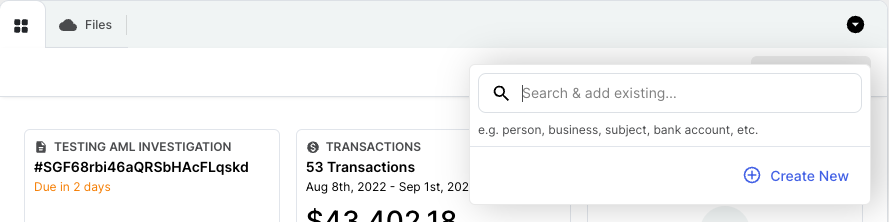
After opening a case, click on the "Add to Case" button to add additional information to the case.
Add to case
You can directly search for an existing subject by entering some identifying information here:
Or click "Create New" in order to add a new review, transactions, financial institutions, people, business, product, bank account, payment card, crypto address, device, or request.
To import data from a structured data document, you should:
1. Select the "Custom Import" option from the drop-down shown when you click "Create New".
2. Drag-and-drop a spreadsheet (into the “....or import a file” area in the pop-up screen) or copy-paste the data from a spreadsheet
3. Click on “Import”
4. Verify the information shown to you
5. Click on “Complete”
{% hint style="info" %}
You can add an "unknown subject" by choosing Person from the drop-down menu. Click on the "Enter manually" button, and then click on the "Add unknown subject" button without filling out the form.
{% endhint %}
# How can I remove a Profile from a case?
Simple! Just:
1. Open the case.
2. Scroll down to the "Collected Info"s section.
3. Open the profile you want to remove
4. Click "Remove from case"
5. You're done.
# How can I update information for an entity?
After clicking on a case, the main view will show you the entities associated with your case. You can update information for an entity by clicking on the entity that requires the update.

From there, click on the "Edit" button beside the necessary field to change the information.

When you’re done, simply click *Save*.

# How can I visualize the connections among all the entities within a case?
When you’re in a case, click on the Connections panel and you’ll see the Connections visualization.
The Connections visualization allows you to view entities that share connections. These could be different people using the same payment instrument, a single bank issuing multiple loans, or any other overlap.
Hummingbird makes these connections from relationships we find in your data. For example, when a person is identified as the holder of a bank account in your case information, Hummingbird will show a line between the person and the account on the connected entity chart.

# How can I visualize the location of each of the entities associated with a case?
When you’re in a case, click on the Locations panel from the main page. A new tab will open with the Locations visualization.
The Locations page allows you to visualize the locations of each of the entities associated with your case. You can see where people live, where the institutions they work with are located, and where their transactions have occurred.
Hummingbird can display just about any geographic information in this section. To show something, it needs to have an address or some other form of information that can be translated into latitude and longitude coordinates.

# How will the information in my case map to fields in Suspicious Activity Reports (SARs)?
Hummingbird offers the ability to see how fields in your case information will map to fields in the FinCEN Suspicious Activity Report. When enabled, this feature displays a small shield icon on fields that will map to the SAR when they are in an "Edit" mode. Hovering over the shield will tell you specifically which SAR field the item maps to. Reach out to [the Hummingbird team](mailto:support@hummingbird.co) to enable this functionality.

# What are narrative templates and where I can manage them in Hummingbird?
Hummingbird makes it easy for you to fill out the Narrative section within a review. Instead of writing a narrative from scratch, you can add an existing template and edit the content as needed.
There are two places where you can manage your narrative templates:
1\. Directly within the Narrative section within a review: click the "Insert Template" button, and choose “Manage Templates” from the drop-down menu.

2\. Within Settings: click on your name at the bottom left > Settings > Organization > Narrative Templates section.

# How do I manage transactions?
## General Use
Any transactions associated with your case appear when you click the Transactions tile in a case.
At the top on the Transactions tab, you can see overall credits, debits, transfers, and net activity.
You can also click "Overview" to see a bar graph of total daily amounts.
You can also pop the transactions table into its own tab in order to gain real-estate.
**NOTE:** Changes made within the popped-out tab will not be visible within the investigation canvas until you refresh the page.

## Filtering
The dynamic functionality of the table allows you to create custom filtered views by clicking on column headings.

You can also create complex filter sets by clicking the "filter" button. The data will filter in real time based on your settings.
A third way to filter data is to start from the cell you want to filter on and work backwards:

Once you have the data filtered the way you want, you can name and save your queryset for use in other cases.
To recall your saved filters, just click the dropdown above the header.

### Sorting & filtering on Source & Destination
Sorting and filtering on Source/Destination Accounts and Entities is possible, provided the Account or Entity is linked to a CRM object in the case. If the Source or Destination is text only, it will not be available for filtering.
## Flagging, editing, adding, and deleting transactions
To flag a transaction as suspicious and to include in your SAR filing, click on the flag icon, which will be highlighted in blue in the Flag column. If no transactions are flagged, all transactions will be included in the SAR filing.
* To add a new transaction, click on the "Add Transaction" button in the top-right corner of the table.
* To copy one or multiple cells, just select them with your mouse and control+c.
* To edit a transaction, double-click the transaction row. If you choose to edit a transaction, a new screen will appear for you to make changes to it. You can add/edit any additional information in the Notes field and they will appear in the Notes column in the table.
* To delete a single transaction, click the checkbox in the row of the transaction to delete.
* To delete all transactions in the case, click the Delete All button
**NOTE:** Transaction deletion is tied to the Bulk Delete Transactions badge permission.
## Reordering and resizing columns
* To reorder columns in the table, click on the name of the column and drag it to your preferred location.
* To resize the column, hover over a column separator, then click and drag.
# Would I get notified when a subject is involved in another case?
Yes! Hummingbird will indicate any duplicate entity in the Information page.
# Hummingbird AI: Security & Privacy Overview
Hummingbird is committed to building AI products that are safe and secure and meet the strict standards of risk & compliance organizations. Below is an overview of Hummingbird's AI functionality and related security and privacy practices.
Keep in mind that Hummingbird AI falls under the same security program as the rest of Hummingbird. For general and additional information, visit our [Trust Center](https://trust.hummingbird.co/).
### What is Hummingbird AI?
Hummingbird offers a suite of AI-powered tools for risk & compliance teams, integrated directly into the platform. Hummingbird AI takes a dual approach: AI Agents automate routine casework, while the AI Assistant helps your team accelerate complex investigations.
**AI Agents**
AI Agents handle routine compliance work end-to-end, with human oversight built in. Every action is explainable and reviewable, and your team stays in control — accepting, refining, or overriding AI outputs before anything moves forward.
* **Case Narratives:** Generate accurate, consistent narratives based on your case data, following your approved templates. Automated checks help ensure nothing is missed, and narratives are reliable enough for mission-critical work, including SAR and STR reporting.
* **Entity Research** *(experimental)*: Automatically compile information on subjects from intelligence sources, watchlists, past case history, and internal systems — surfaced and cited directly in the case.
* **Reviews** *(experimental)*: Automatically fill in review fields and document what's already in the case data, so your team can focus on verifying reasoning and approving.
* **SAR Filing** *(experimental)*: Prepare SARs for review, then — once approved — populate the form and submit electronically to the FIU.
**AI Assistant**
The AI Assistant is an always-on co-pilot that works alongside your team on active investigations. Analysts can ask questions, follow threads, and uncover patterns across case data through an interactive chat experience. The Assistant can also guide investigators through your procedures and help answer key questions that need to be addressed in a case.
### Where is my data processed?
Hummingbird AI currently uses OpenAI's large language models to power our AI features. We have an enterprise agreement with OpenAI that includes Zero Data Retention (ZDR), meaning no customer data is stored or retained by OpenAI — requests pass through and responses are returned without any data being kept on their systems. All data is processed within the United States. For a small number of features that require temporary data storage to function, that storage happens within Hummingbird's own secure cloud environment, not on OpenAI servers. This approach helps keep your data safe, prevent unauthorized access, and minimize the risk of data breaches.
AI features operate on the same customer data already retained within Hummingbird — using AI does not change how your data is stored or expand where it lives. This includes case data that may contain PII or other sensitive information (such as data associated with SARs, STRs, or KYC workflows), which is handled under the same access controls and security practices as the rest of the Hummingbird platform.
We continuously evaluate models and model providers, and may leverage additional LLM providers as capabilities evolve in order to deliver the best possible product experience for our customers.
### Which models power Hummingbird AI?
Hummingbird AI is built on a mix of commercially available, industry-leading models — not models that Hummingbird has trained or developed in-house. Different features call on different model types depending on the task, including:
* **Reasoning models** for multi-step investigative logic
* **Foundational / general-purpose models** for narrative generation and summarization
* **Multimodal models** for interpreting mixed content types
* **OCR models** for extracting text from images and documents
* **Embedding models** for retrieval and matching
* **Smaller, lower-latency models** for fast, targeted tasks
For more sophisticated features, multiple models are used in combination within a single workflow. Rather than mapping one model to one feature, we select the most effective model — or combination of models — for each step of the work, and refine that mapping over time as better options become available.
The model landscape evolves rapidly, so we continuously evaluate new options and test them against our own benchmarks. At present, our primary model providers are OpenAI (for LLMs) and AWS (for OCR via Amazon Textract).
### How are Hummingbird AI models customized?
Hummingbird does not fine-tune or train models on customer data. Instead, we customize model behavior through:
* **Prompt engineering** — carefully designed prompts that guide model outputs for compliance-specific tasks
* **Tool calling** — giving agents controlled access to the specific case data and systems they need
* **Retrieval-augmented generation (RAG)** — providing relevant context to models at runtime so they can produce grounded, accurate outputs
* **Customer-managed templates** — for some features (such as Case Write-ups), customers can define their own templates that shape the specific prompts and expected outputs
We have found that these approaches are sufficient to deliver high-quality, compliance-grade outputs with frontier models, and they have the added benefit of keeping customer data fully isolated between tenants.
### How does Hummingbird test AI accuracy and guard against hallucinations?
Hummingbird has built an internal evaluation and testing framework around open source [Langfuse](https://langfuse.com/) tailored specifically to the compliance domain and our customers’ needs. This framework extends well beyond standard unit testing and includes:
* **Accuracy benchmarks** built from real customer use cases and hand-curated compliance-specific datasets
* **Task-specific evaluation criteria** such as faithfulness and completeness
* **LLM-as-judge evaluators** for scaling qualitative assessment across large test sets
* **Pre-deployment testing** of every prompt, model, or software change before it reaches production
* **Ongoing monitoring** of model performance in production
These evaluations are domain-specific to compliance and are designed to catch hallucinations, regressions, and accuracy drift before they affect customers.
### How does Hummingbird manage AI security risks?
AI features are developed and maintained under the same SDLC and DevSecOps controls as the rest of the Hummingbird platform. This includes automated and manual testing, code review, and inclusion in our regular penetration testing program.
In addition, we apply AI-specific security practices:
* **Red team exercises** to identify potential vulnerabilities specific to AI features
* **MITRE ATLAS framework** to assess adversarial risks across attack vectors relevant to AI systems
* **Prompt injection defenses** such as those described for the Entity Research Agent above, including isolation of untrusted inputs and structured validation of agent outputs
* **Review of flagged misuse** as surfaced by our model providers
* **External auditing** by an information security consultancy for penetration testing and general security reviews
Together, these controls help us identify and mitigate risks specific to AI — including prompt injection, jailbreak attempts, and adversarial inputs — alongside our existing security program.
### How does Hummingbird protect against third-party prompt injection risks?
To protect your data and guard against prompt injection from untrusted web content, our research agent follows the principles of the [Agents Rule of Two](https://ai.meta.com/blog/practical-ai-agent-security/), a framework developed by Meta for designing agents that deterministically reduce the impact of prompt injection. In practice, this means open web searches are isolated and run with only limited context about the subject. A separate entity resolution step — with access to fuller subject context — then confirms that the retrieved information actually relates to the entity in question. Verified results are summarized, cited, and surfaced directly in the case for your review.
### Is my Hummingbird data used to train AI models?
No. Hummingbird does not use customer data to train or fine-tune AI models, and our third-party model providers are contractually and technically configured to prevent retention or training on customer data.
Note that Hummingbird engineers may occasionally view customer data for troubleshooting purposes or to fix bugs in our AI products (for example, to investigate a prompt issue reported by a customer). This access follows the same controls and least-privilege principles that govern all engineer access to the platform.
### How does Hummingbird AI keep my data safe?
Hummingbird AI is designed to comply with Hummingbird's standard security practices and compliance standards, which include SOC 2 Type 2 certification. This is in addition to the AI-specific security practices described above and detailed here.
To learn more or request additional information, visit our [Trust Center](https://trust.hummingbird.co/).
### Can I turn off Hummingbird AI for my organization?
Yes, the use of Hummingbird AI is optional for all organizations. Admins can request to disable AI features. Visibility and access to some Hummingbird AI capabilities can also be managed using badge permissions.
# Hummingbird API
The articles in this section should provide help answer your high-level questions about how to use and access the Hummingbird API.
# How do I generate API keys?
To generate an API key: log into the sandbox/production environment > click on your name on the lower left corner > Settings > Organization Settings > Developers > API Keys tab. Click the "Add new" button to generate a new key.
When you create an API key, we prefer it to be associated with an email address that is different from the members of your team. This is the email address where updates and notifications from actions taken by the API are sent. It's normally some sort of group or team alias (), but if you want it to be associated with a personal email address, you can also alias your own email address ([yourname+hummingbirdapi@yourcompany.co)](mailto:yourname+hummingbirdapi@yourcompany.co).
# How do I get started with Hummingbird’s API integration?
Hummingbird’s API documentation can be found here: [https://docs.hummingbird.co/](https://docs.hummingbird.co)
Email for access.
The best place to start is by reviewing the Getting Started and Overview sections.
API calls in the sandbox environment are made to [api.sandbox.hummingbird.co](http://api.sandbox.hummingbird.co); API calls in the production environment are made to [api.hummingbird.co](http://api.sandbox.hummingbird.co).
# Is there a limit on the size of API calls?
To ensure the safe and reliable operation of the Hummingbird platform, we enforce limits on the size of API payloads.
* **Standard API Payloads:**
The API supports payloads up to 2 MB in size. This limit is designed to accommodate thousands of individual transactions efficiently.
* **Alert Uploads API:**
This API is specifically designed to support larger datasets up to 10 MB in size and more detailed Alert requests.
{% hint style="info" %}
**A note on FINCEN** - FinCEN imposes a size limit of 1 MB for transaction CSV attachments. Hummingbird will handle anything above that limit on-platform.
{% endhint %}
If you have any questions or concerns, please reach out to the Hummingbird team ().
# What’s the difference between the Alerts API and the Case API?
Currently the primary difference between the Alerts API and the Case API is the grouping behavior. Cases created via the Alerts API will include all alerts associated with a given subject. Cases created via the Case API are just created with the details provided in the request to Hummingbird. The grouping behavior of the Alerts API results in fewer cases and overall less work for investigators. We are also actively developing additional functionality to add intelligent handling to alerts registered over the Alerts API. For these reasons, we recommend using the Alerts API for alerts generated from any monitoring systems.
# Where can I get more information about why an API call failed?
You can get more information in Settings: click on your name on the top-right, choose Settings from the drop-down menu, then navigate to the Imports tab. You’ll see API calls and the failure reason listed.
# Can I upload files over the API?
Yes! We support adding file attachments over the API.
The basic high level overview of how to use this API involves 3 steps an integrator must take:
1. Create an attachment token and pre-signed upload data
2. Upload the file to AWS S3 utilizing the provided pre-signed upload data provided in step 1.
3. Create or update a case/alert with the attachment token provided in step 1.
All requests to the Hummingbird API should include an Authorization header with your access token. For additional details on authorization and detailed specification for the API, refer to our [API documentation](http://docs.hummingbird.co).
### 1. Create an attachment token `POST /attachments`
The first step is to fetch an attachment token and details on where to upload your attachment file. The following is an example curl request. The only data required is the `filename` of the file you plan to upload and the `mime_type` of the file.
We do have restrictions on the types of files that are allowed to be uploaded. At this time, we allow:
* `image/*` , `audio/*`, and `text/*`file types
* `application/pdf` and `application/zip` files
* CSVs with a mime type of `text/csv`
* Most Office files (Outlook, Excel, Word, PowerPoint)
* And many more - for the full list see [Supported Mime Types](/hummingbird-api/can-i-upload-files-over-the-api/supported-mime-types)
* Files can be up to 100mb in size
```bash
curl -d '{"filename":"image.png", "mime_type":"image/png"}' -H "Content-Type: application/json" -H "Accept: application/json" -H "Authorization: Bearer " -X POST
```
The response will include two attributes: `token` and `upload`. Here is an example response:
```json
{
"upload": {
"method": "post",
"url": "...",
"fields": {
"key": "...",
"Content-Type": "image/png",
"Expires": "Tue, 12 Jul 2022 15:43:12 GMT",
"policy": "...",
"x-amz-credential": "...",
"x-amz-algorithm": "AWS4-HMAC-SHA256",
"x-amz-date": "...",
"x-amz-security-token": "..."
"x-amz-signature": "..."
}
},
"token": "gFDqw8ZStsTyai7qLQDTYq9N"
}
```
The upload data describes where/how to upload your attachment file to S3 while the token is to be used later when creating/update a case.
If you plan to include multiple attachment files on a case you will need to send a request to `POST /attachments` for each file you plan to attach. Keep each token and submit them all as part of your case data in step 3 below.
### 2. Uploading your attachment file to AWS S3
To upload a file to S3 you must send a multipart/form-data request using the data provided in the previous step.
From the response you received above in step 1 we have the portion that represents your upload:
```json
{
"method": "post",
"url": "",
"fields": {
"key": "...",
"Content-Type": "image/png",
"Expires": "Tue, 12 Jul 2022 15:43:12 GMT",
"policy": "...",
"x-amz-credential": "...",
"x-amz-algorithm": "AWS4-HMAC-SHA256",
"x-amz-date": "...",
"x-amz-security-token": "..."
"x-amz-signature": "..."
}
}
```
We use this data to build our multipart/form-data request. Note the attributes nested under fields are the form fields to be included in the request. All fields are required to be submitted along with a the file.
Please note that the content-type of the request should be multipart/form-data. This is different than the ‘Content-Type’ form field data provided.
```bash
curl --location --request POST '' \\
-H "Content-Type: multipart/form-data" \\
-H "Accept: application/json" \\
--form 'key="..."' \\
--form 'Expires="Thu, 21 Jul 2022 18:50:32 GMT"' \\
--form 'Content-Type="application/pdf"' \\
--form 'policy="redacted"' \\
--form 'x-amz-credential="..."' \\
--form 'x-amz-algorithm="AWS4-HMAC-SHA256"' \\
--form 'x-amz-date="20220721T184032Z"' \\
--form 'x-amz-signature="redacted"' \\
--form 'x-amz-security-token="redacted"' \\
--form 'file=@"/path/to/your/file/image.png"'
```
Upon a successful upload we are now good to create/update a case.
### 3. Create/Update a case with an attachment
#### Case
Now it is time to put the attachment `token` we received in step 1 to use. Using or cases API we can now submit our attachment(s) to be included on our case.
Here is an abbreviated example payload to `POST /cases` with an attachment:
```json
{
"case": {
"name": "Case 123",
"id": "123",
"type": "filing",
"bank_accounts":[...],
"individuals":[...],
"institutions": [...],
"attachments": [
{
"token": "gFDqw8ZStsTyai7qLQDTYq9N"
}
],
"filings": [...]
}
}
```
Up to 10 attachments can be uploaded to a case in this manner. The same attachments format can be used when updating a case.
#### Alert
You can use a similar format to upload an alert, include attachment `token` in the data section of the alert payload
Here is an example payload that can be submitted to `POST /alerts`
```json
{
"alerts": [
{
"id": "alert-id",
"rule": "alert-rule",
"triggered_at": "2099-04-25T22:11:24.925339Z"
}
],
"workflow": "triage",
"data": {
"individuals": [...],
"transactions": [...]
"attachments":[
{
"token" : "gFDqw8ZStsTyai7qLQDTYq9N"
},
{
"token" : "gFDqw8ZStsTyai7qLPEUXr10O"
}
]
}
}
```
Up to 10 attachments can be included with each call to the Alert API.
#### Fetching Attachments From a Case
You can also pull attachment files from a case to download to your own system of record. To fetch attachment data along with a pre-signed url enabling you to download the file, make a request to `GET /cases/{case_token}/attachments`. The same attachment data is included when fetching an a case as well (`GET /cases/{case_token}`).
An example response is as follows:
```json
{
"attachments": [
{
"token": "FimZ1xUCskiqnKbGETMcmUqt",
"filename": "image.png",
"createdAt": "2022-07-15T14:51:40.919Z",
"updatedAt": "2022-07-15T14:51:40.919Z",
"contentType": "image/png"
"url": "..."
}
],
"success": true
}
```
### Frequently Asked Questions
**How can I test these APIs?**
We recommend testing in your Sandbox environment. Remember that Sandbox is only designed for use with fake data, and no PII should be sent.
**What is the lifespan of the pre-signed URLs?**
10 minutes
**Can I upload multiple files using the same attachment S3 url and upload data?**
You will need to request a new attachment token/upload data (step 1 above) for each file you wish to upload and attach to a case. AWS S3 will allow you to upload multiple files using the same upload data (assuming it hasn’t expired). If you upload more than one file using the same upload data, older uploaded files will be overwritten and only the last file you uploaded will be added to the case.
**Can I attach the same file to multiple cases?**
An attachment token can only be used once to associate a file with an attachment on a case. If you want to upload the same file to multiple cases you will need to request a new attachment token and upload the file to S3 for each case.
#### Why do I need to create three separate requests in order to attach a file through API?
At this time, we want to avoid having files transiting our backend to be uploaded. Very large files could potentially cause performance issues. With that, we're currently utilizing AWS S3's file upload capabilities which handles upload, retry, and chunking efficiently.
# Supported Mime Types
The Hummingbird API supports the following MIME types. To request support for additional types, please email .
```
application/csv
application/epub+zip
application/gzip
application/json
application/msword
application/ogg
application/onenote
application/pdf
application/rtf
application/vnd.ms-excel
application/vnd.ms-outlook
application/vnd.ms-powerpoint
application/vnd.ms-publisher
application/vnd.openxmlformats-officedocument.presentationml.presentation
application/vnd.openxmlformats-officedocument.presentationml.slideshow
application/vnd.openxmlformats-officedocument.spreadsheetml.sheet
application/vnd.openxmlformats-officedocument.wordprocessingml.document
application/vnd.visio
application/x-bzip2
application/x-7z-compressed
application/x-ms-msg
application/x-rar-compressed
application/x-tar
application/x-xz
application/xml
application/zip
```
# How do I upload larger Alerts data via API?
## Introduction
Larger alerts (>2MB) can be sent to Hummingbird via the Alerts Upload API.
The Alerts Upload API will involve a 4-step client flow:
1. Client requests an upload URL by calling the POST /alert\_uploads endpoint.
2. Client uploads the encrypted alerts data to the provided URL.
3. Client notifies Hummingbird that the upload has been completed by calling the PUT /alerts\_uploads/{token}/complete endpoint
4. Client polls for the outcome of upload by calling the GET /alert\_uploads/{token} endpoint
## Technical Implementation
### POST /alert\_uploads
This is the first API endpoint called to begin the Alerts Upload process.
Authentication for this endpoint is the same as all of the Hummingbird API.
The request body should be an empty JSON object.
The response format will be a JSON object with the following format:
```
{
"success": true,
"alert_upload": {
"token": "ZxiJDeAVWmDUaa7iDJLGArCJ",
"upload": {
"method": "post",
"url": "https://s3.us-west-2.amazonaws.com/hummingbird....",
"fields": {
...
}
},
"encryption": {
"version": 1,
"public_key": {
"id": "FVczGR6DDoKYHSY2LpiG6XGQ",
"key": "-----BEGIN PUBLIC KEY-----..."
}
}
}
}
```
### **Client-Side Encryption**
The JSON body to be uploaded is the same as a request body sent to the synchronous [POST /alerts endpoint](https://docs.hummingbird.co/#tocS_AlertRequest). The payload must be encrypted client-side before upload using the public key returned from the initial API call and uploaded to the URI provided in that same response.
**Encrypted Format**
The encrypted content is formatted as follows:
```
\0
```
A JSON-formatted encryption metadata header is followed by a NULL byte which is followed by the encrypted [AlertRequest](https://docs.hummingbird.co/#tocS_AlertRequest) payload in binary.
The format for the JSON encryption metadata varies depending on the version of encryption scheme used, and is described in more detail below. At a minimum, the header will contain a “version” key.
#### **Version 1**
This encryption scheme implements a simple sealed envelope using RSA-4096 (PKCS1) for key wrapping and AES-256-GCM for data encryption. A random session AES key and initialization vector are generated for each message.
The RSA public key used for key wrapping is provided in the API response in the first step for convenience. This is a long-lived key, and **may also be shared or verified out-of-band**, or hard-coded in the client depending on your desired security posture.
The public key id is a unique identifier for the public key. It is used during decryption to locate the appropriate private key and facilitate key rotation.
The format for the version 1 encryption metadata header is:
```
{
"version": 1,
"key_id": "hb-123",
"encrypted_session_key": "base64(aes session key)",
"iv": "base64(iv)",
"auth_tag": "base64(auth_tag)"
}
```
The following example code implements the version 1 encryption scheme in Ruby, using OpenSSL. The encrypt() method outputs the full content which is to be uploaded using the pre-signed URL. See [this Github Gist](https://gist.github.com/simoleone/ed458f4404db46896a08aff4591761cd).
#### Upload to S3
After the content is encrypted it should be uploaded to S3 using the pre-signed URL and fields obtained from the first API call. This should use an HTTP POST. See AWS documentation for more details about this.
Total upload size is limited to 10MB in order to protect the user experience for your investigators who ultimately may have to manually review all of the uploaded data. Please reach out to our customer success team if this limit is too restrictive.
Pre-signed URLs will have very short validity and should be used immediately after retrieval.
**Tip:** Ensure that the Content-Type is multipart/form-data, and that the form data includes everything provided in ‘upload.fields’, in addition to the encrypted envelope as ‘file’.
An example curl request to upload data to S3:
```
curl --location --request POST 'https://s3.us-west-2.amazonaws.com/hummingbird.XXX' \
--form 'key="alert_uploads/XX"' \
--form 'acl="private"' \
--form 'x-amz-meta-hb-organization-token="XXX"' \
--form 'x-amz-meta-hb-key-id="XXX"' \
--form 'policy="XXX"' \
--form 'x-amz-credential="XXX"' \
--form 'x-amz-algorithm="XXX"' \
--form 'x-amz-date="XXX"' \
--form 'x-amz-security-token="XXX"' \
--form 'x-amz-signature="XXX"' \
--form 'file=@"/tmp/encrypted_envelope"'
```
### **PUT /alert\_uploads/{token}/complete**
Notify Hummingbird that the upload has been completed. Send an empty JSON object {}. Use the token obtained from the response to the initial GET request.
Hummingbird will synchronously verify that the uploaded file exists in S3 and enqueue for further processing. No other verification or processing will occur as a result of this call.
The response will be in the same format as the response to GET /alert\_uploads/{token} described next.
### **GET /alert\_uploads/{token}**
This endpoint can be polled for the results of the upload.
Alerts processing takes place asynchronously and we occasionally receive high volumes in short periods of time which can lead to temporarily longer queuing times. Please be mindful of this when polling this endpoint if you find that the alerts processing times vary. We generally aim to process alerts within 24 hours, though most alerts are processed within an hour.
This endpoint returns the overall status of the alert, an error message if one occurred, as well as an array of AlertFetchResponse objects, the same response typically provided by the GET /alerts/{token} endpoint on a per-alert basis. The array of alerts will remain EMPTY until ALL alerts in the upload have been processed, and the status is either PROCESSED or ERROR.
The response format is as follows:
```
{
"success": true,
"alert_upload": {
"token": "Hn4JsTGbMTy2nmJEDokwZArf",
"updated_at": "2021-11-12T19:11:37.889Z",
"created_at": "2021-11-12T19:11:36.948Z",
"alert_processing_started_at": null,
"failed_at": null,
"error_message": null,
"status": "PENDING|PROCESSING|PROCESSED|PROCESSING_ERROR|UPLOAD_ERROR",
"alerts": [AlertFetchResponse, ... ]
}
}
```
## **Frequently Asked Questions**
#### How can I test these APIs?
We recommend testing in your Sandbox environment. Remember that Sandbox is only designed for use with fake data, and no PII should be sent.
#### What is the lifespan of the pre-signed URLs?
5 minutes
#### Is the RSA public key the same for all customers?
It is not. A separate 4096 bit RSA key is generated for each customer.
#### How is the S3 bucket secured?
Data is encrypted with S3 server-side encryption in addition to the client side encryption described above. All objects are ‘private’ and versioned by default. S3 bucket configurations are regularly inspected as part of security audits and penetration testing. Is there a rate limiting on the polling endpoint? Not at this time.
#### How long does alert processing take?
We process alerts asynchronously, so processing times vary. We aim to process all alerts within 24 hours, though most alerts are processed within an hour.
### **Resources**
[**Hummingbird API documentation**](https://docs.hummingbird.co)
[**End-to-End Example in Python**](https://gist.github.com/simoleone/5f1fc81713ca5f9c174c3198c4f9a159)
[**Example Encryption in Ruby**](https://gist.github.com/simoleone/ed458f4404db46896a08aff4591761cd)
[**Example Encryption in Golang**](https://gist.github.com/simoleone/bfb4a2af29051adbf45c3be5fb37945e)
# Platform Administration
The articles in this section should provide help answer your high-level questions about how to administer and configure the Hummingbird platform.
# Can Hummingbird auto-assign reviews to my teammates?
Yes! The Hummingbird team can help you set up auto-assignment for reviews. It’s round-robin based on review type and badge. Please reach out to [the Hummingbird team](mailto:support@hummingbird.co) to learn more.
# Can I remove certain data imports or clear out the entire import history in my sandbox or production
You can see all the import history by clicking on your name on the top right, choosing Settings from the drop-down menu, and then clicking on the Imports tab. You’ll see a status for each file import:
* Uploading a spreadsheet (CSV, Excel, or other tabular data format); or
* via API.
We currently do not give users permission to remove import history. Please reach out to and we can look into this for you on a case-by-case basis.
# How Do I Export My Organization's History?
Sometimes it is useful to export all history for your organization to help with audits, exams, or to analyze activity.
All activity for your organization is captured and is available for export to CSV with a few mouseclicks.
1. Navigate to Settings -> Reports -> History\

2. Click 'Export'
3. Choose a week to export, accept the disclaimer, and the download will be prepared.
### CSV File Contents
The file contains everything you see in the Hummingbird App, plus Review and Case links to enable sorting history specific to Cases and Reviews.
# How can I switch between organizations I’m assigned to?
1. Sign in to Hummingbird.
2. Once you're in, click on your name in the lower-left corner.
3. In the menu that appears, you should see a list of the organizations you belong to – switch between them here.
{% hint style="info" %}
You’ll only see this option if you have access to multiple organizations.
{% endhint %}
# How can I view or change information about my team or organization?
Click on your name at the bottom left and choose Settings from the dropdown. Then click on:
* Team tab: View permissions for each of your team members
* Organization tab: View profile information (including setting a timezone for your organization), add narrative templates, or add API keys
* Filing Institution tab: View filing institution information and manage FinCEN Credentials
{% hint style="info" %}
You need to have Admin permissions in order to manage your team members
{% endhint %}

# How are Filing Institutions and Financial Institutions related?
Filing Institutions and Financial Institutions are related, but serve different purposes.
### Filing Institutions
Filing Institutions show information about your organization that would be included to identify your organization when you file a SAR; such as legal name, tax ID, institution type, primary regulator, financial intelligence unit, etc.), Organization Identifier (e.g., Central Registration Depository (CRD) ID number), and credentials needed to access the FIU. The ability to edit this information is enabled via a Badge Permission.
### Financial Institutions
Financial Institutions contain much of the same information as a Filing Institution and are provided within the SAR to identify the institution where unusual activity has occurred. In the vast majority of cases, the Financial Institution is the same entity that is filing the report.
### So, how do they relate to each other?
Because Filing Institutions and Financial Institutions can be the same entity, they are linked in the platform. Linked Financial Institutions have a check icon showing that it is an "official" institution and should be used in filings.

### How do I edit Financial Institutions?
Because of the link between "official" Financial Institutions and Filing Institutions, all edits to their data occurs along with editing Filing Institution Data. The profile view of these Financial Institutions contains both the check icon, and a "Read Only" indicator. The ability to edit data for these entities is behind a permission, and can be edited in the Filing Institution tab in the settings page.
### How can Hummingbird help ensure the appropriate institution is included for manually created cases?
Easy! We can automatically add the "official" Financial Institution to manually created cases. This is a configuration setting and can be enabled or disabled by your team at Hummingbird.
# How do badges (roles & permissions) work in Hummingbird?
Every user in Hummingbird is assigned a badge (a set of permissions). The top-level permission setting is the Admin badge. The most restricted permission setting is the Analyst badge, where a user will only be able to see cases that are assigned to them. Learn more about how to assign a case/review to your teammates ([help article](https://help.hummingbird.co/case-management/how-can-i-assign-a-review-to-a-team-member)).
Most users in Hummingbird are assigned either the Admin badge or the Analyst badge. Hummingbird can create customized badges for your team. Here are some examples of permissions that we can configure on/off:
* Ability to see all cases across your organization
* Ability to file
* Ability to manually complete / reopen a review
* Ability to update / remove narrative templates
Please reach out to the Hummingbird team () and we’ll be happy to help with any questions.
---
[Next Page](https://help.hummingbird.co/llms-full.txt/1)


.png?alt=media&token=5e276246-e00e-4243-8c48-88bc367f9863)
.png?alt=media&token=cb45fb7e-b340-4e61-a39a-291cf10523fa)


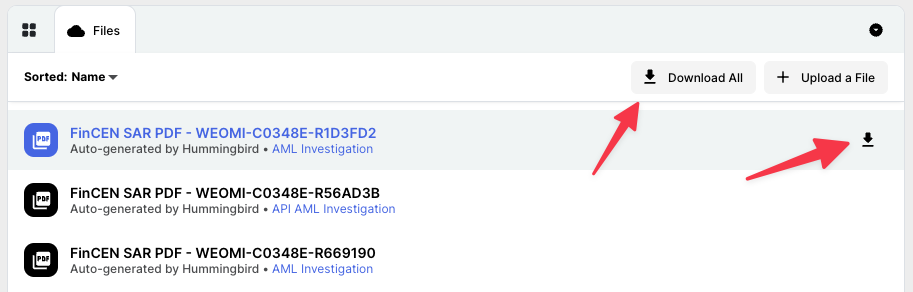


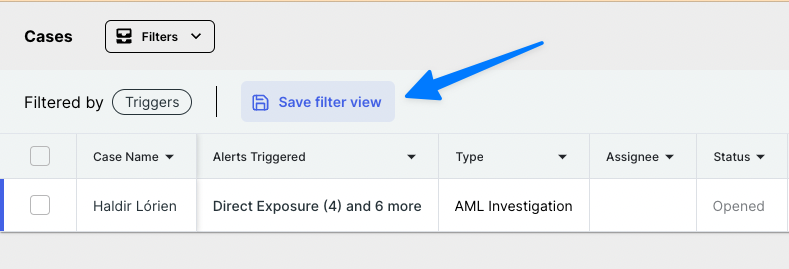





.png?alt=media&token=9b215173-92bd-4eaf-8ca1-b18823af962a)
.png?alt=media&token=7ee59533-36c6-4308-b4e7-9dd67dbbb5a1)